
Scheduled Reports
Scheduled Reports or Subscriptions let you run reports on a specified schedule and receive the results automatically by email. For example, you can get a weekly report listing computers that are missing security patches.
NOTE: To subscribe to a scheduled report delivery (report subscription), a user role with at least View Reports permission is required.
To subscribe to scheduled report delivery:
- Navigate to the report you need.
- From the list on top of the window, select Action1 Organization that will provide data for the report. Otherwise, you will be asked to select the Organization at the next step.
- Click Tools and select Subscribe.
Tip: Alternatively, you can navigate to Scheduled Reports where you can see your active subscriptions. There you can click New subscription and enter a plain-English query, such as “installed software,” “missing updates,” or “running processes.” Action1 will suggest relevant reports.
- Select Enable This Subscription.
- Specify the subscription properties, including its schedule and recipient. For example, you can send the report every Monday at 10:00 to the IT security manager.
NOTE: Currently, you can provide only one recipient address for the report subscription.
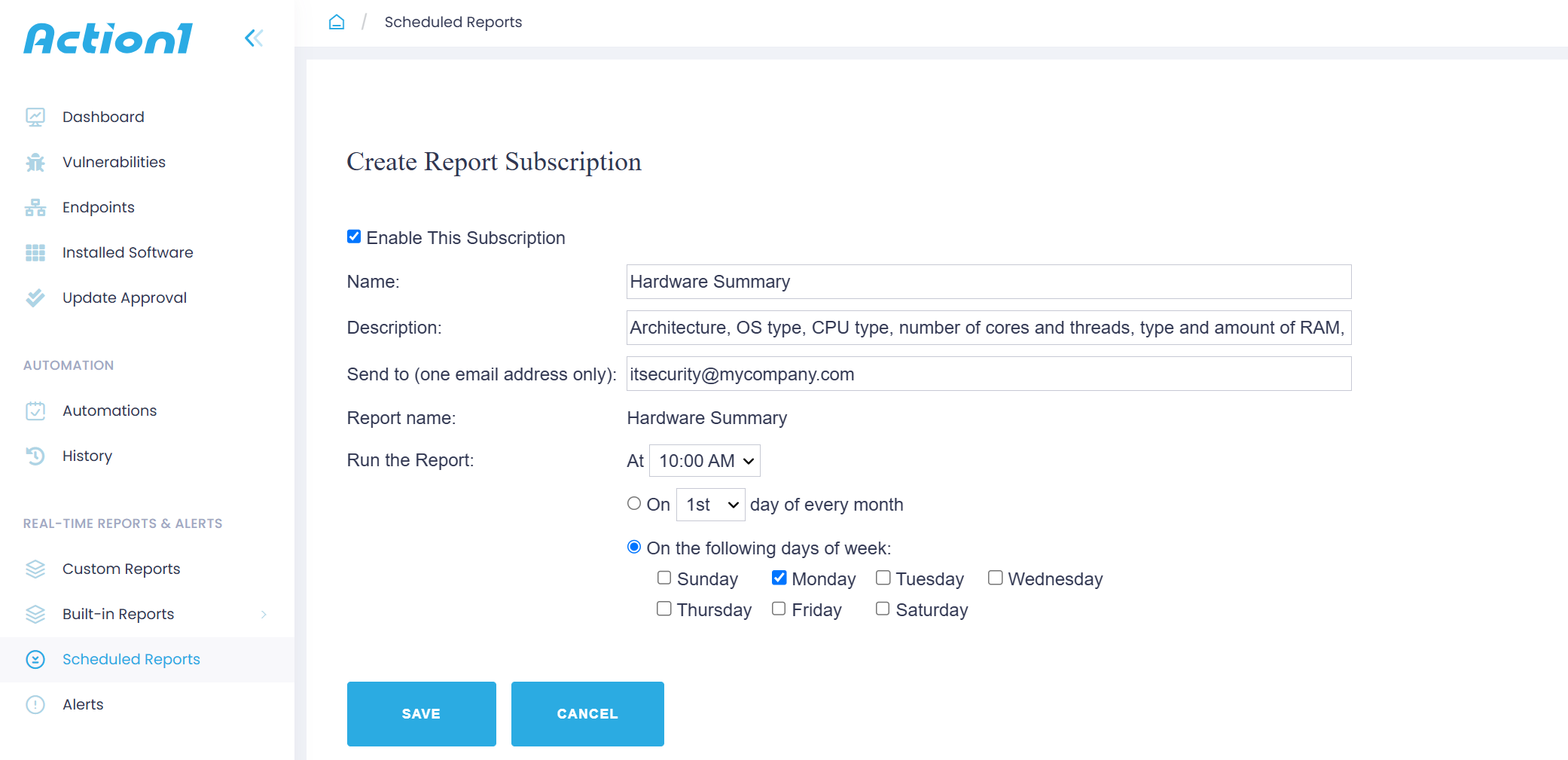
- Save the settings.
The new subscription will be shown in the Action1 Console under Scheduled Reports.